
Useful CMD Commands for Network Information
Quick commands, clear network info.
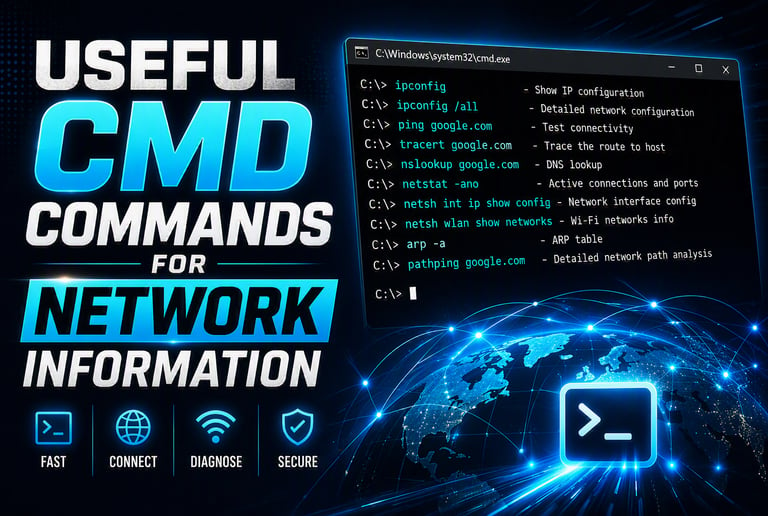
CMD gives you fast access to detailed network information.
Windows includes powerful built‑in commands that let you see your IP address, gateway, DNS servers, and other network details instantly. These commands are simple, safe to run, and extremely helpful when troubleshooting internet issues or gathering information for support. You don’t need extra software — everything is already built into Windows.
Use ipconfig to view your IP address and basic network details.
The ipconfig command shows your IPv4/IPv6 address, subnet mask, and default gateway for each network adapter. Running ipconfig /all gives even more detail, including your MAC address, DHCP status, DNS servers, and lease information. This is one of the most important commands for checking whether your computer has a valid network configuration.
Use ping to test your connection to other devices or websites.
The ping command sends small packets to another device to check if it’s reachable. Running ping google.com or ping 8.8.8.8 helps you confirm whether your internet connection is working and how quickly it responds. If you get replies, your connection is active; if you get timeouts, there may be a network issue.
Use nslookup to check DNS resolution.
DNS translates website names into IP addresses. The nslookup command lets you check whether a domain name is resolving correctly. For example, nslookup google.com shows which DNS server responded and what IP address it returned. This is useful when websites won’t load but your internet connection seems fine.
Use netstat to view active network connections.
The netstat command shows all active network connections and listening ports on your computer. It’s helpful for identifying which programs are using the network or spotting unusual activity. This command gives you a deeper look at what your computer is communicating with behind the scenes.
Use tracert to see the path your connection takes.
The tracert command shows each “hop” between your computer and a destination, such as a website. This helps diagnose slow connections or routing issues by showing where delays occur along the path.
CMD commands make network troubleshooting faster and easier.
These simple commands give you instant insight into your network setup, helping you identify problems quickly. Whether you’re a home user trying to fix Wi‑Fi issues or a small business checking workstation connectivity, CMD tools are an easy way to understand what’s happening on your network.